

Yealink document
Yealink Teams Phone Setup Guide with Microsoft Configuration Platforms
Loading document preview…
About this document
About the Teams Phone Setup Guide with Microsoft Configuration Platforms
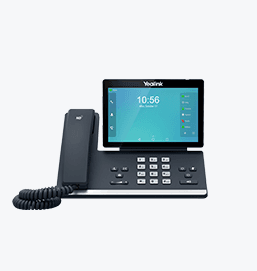
A Yealink document for the Yealink SIP-T56A (57 pages). This copy, last updated by Yealink on October 21, 2025, and you can read it right here or download it.
The SIP-T56A has been discontinued by Yealink, but it's still widely used, and this document is still the reference for setting it up. The Tech Team™ supports end-of-life Yealink phones and can help you plan a replacement when you're ready.
SIP-T56A is end of life. Support options, dates and replacementsWhat’s inside
- About This Guide
- Overview of Setting Up Teams Phone
- Users & Licenses
- Understand License Types
- Add Users and Assign Licenses Simultaneously
- Change Account Password
- Feature Settings
- Set Up Call Queues
- Prerequisites
- Step 1 - Enable Enterprise Voice for Agents
- Step 2 - Create a Team for the Call Queue Agents
- Step 3 - Create a Resource Account
- Step 4 - Assign a License to the Resource Account
- Step 5 - Create a Call Queue
- Step 6 - Assign a Call Number to the Resource Account
- Set Up Auto Attendants
- Step 1 - Create a Resource Account
- Step 2 - Assign a License to the Resource Account
- Step 3 - Enable Enterprise Voice
- Step 4 - Create an Auto Attendant
- Step 5 - Assign a Call Number to the Resource Account
- Set Up Common Area Phones
- Step 1 - Create a User Account and Assign Licenses
- Step 2 - Assign Phone Numbers
- Step 3 - Sign In
- Provision Devices on Teams Admin Center
- Device Firmware Requirements
- Add Device MAC Addresses
- Pre-Configure Devices
- Provision Devices
- Remote Sign In
- Sign In to Teams Accounts
- On Your Teams Device
- On a Web Browser
- Manage Devices on Teams Admin Center
- Update Devices Remotely
- Automatic Update
- Manual Update
- Download Device Logs
- Use Configuration Files
Phones covered
Yealink phones this document covers
Related
More Yealink other downloads
- PDFYealink SIP IP Phones XML Browser Developer's Guide V1.0DownloadUpdated Jun 15, 2026SIP-T56A
- PDFYealink Configuration Encryption Tool User Guide V1.2DownloadUpdated Apr 3, 2026SIP-T56A
- PDFCalling and Connected Line Identification Presentation on Yealink IP PhonesDownloadUpdated Apr 3, 2026SIP-T56A
- PDFLDAP Directory on Yealink IP PhonesDownloadUpdated Apr 3, 2026SIP-T56A
- PDFRecovery Mode on Yealink IP Phones V86DownloadUpdated Apr 3, 2026SIP-T56A
- PDFServer Redundancy on Yealink IP PhonesDownloadUpdated Apr 3, 2026SIP-T56A
- PDFOpenVPN Feature on Yealink IP Phones V1.0DownloadUpdated Apr 3, 2026SIP-T56A
- FILEUsing Security Certificates on Yealink IP Phones V1.0.pdfWithdrawn by YealinkUpdated Apr 3, 2026SIP-T56A
FAQ
Questions about this document
Quick answers, and The Tech Team™ is a call away if you need more.
Need help with your SIP-T56A?
The Tech Team™ can provision, update and troubleshoot your Yealink phones, and move your office onto smplVoice cloud voice.
Yealink and Yealink product names are trademarks of Yealink Network Technology Co., Ltd. Product information, images and documents are published by Yealink and provided here for reference by smplVoice. Firmware and documents are Yealink’s original, unmodified files.