

Yealink user guide
Yealink MP54&T55A Teams Phone Edition User Guide V15.1
Loading document preview…
About this user guide
About the MP54&T55A Teams Phone Edition User Guide V15.1
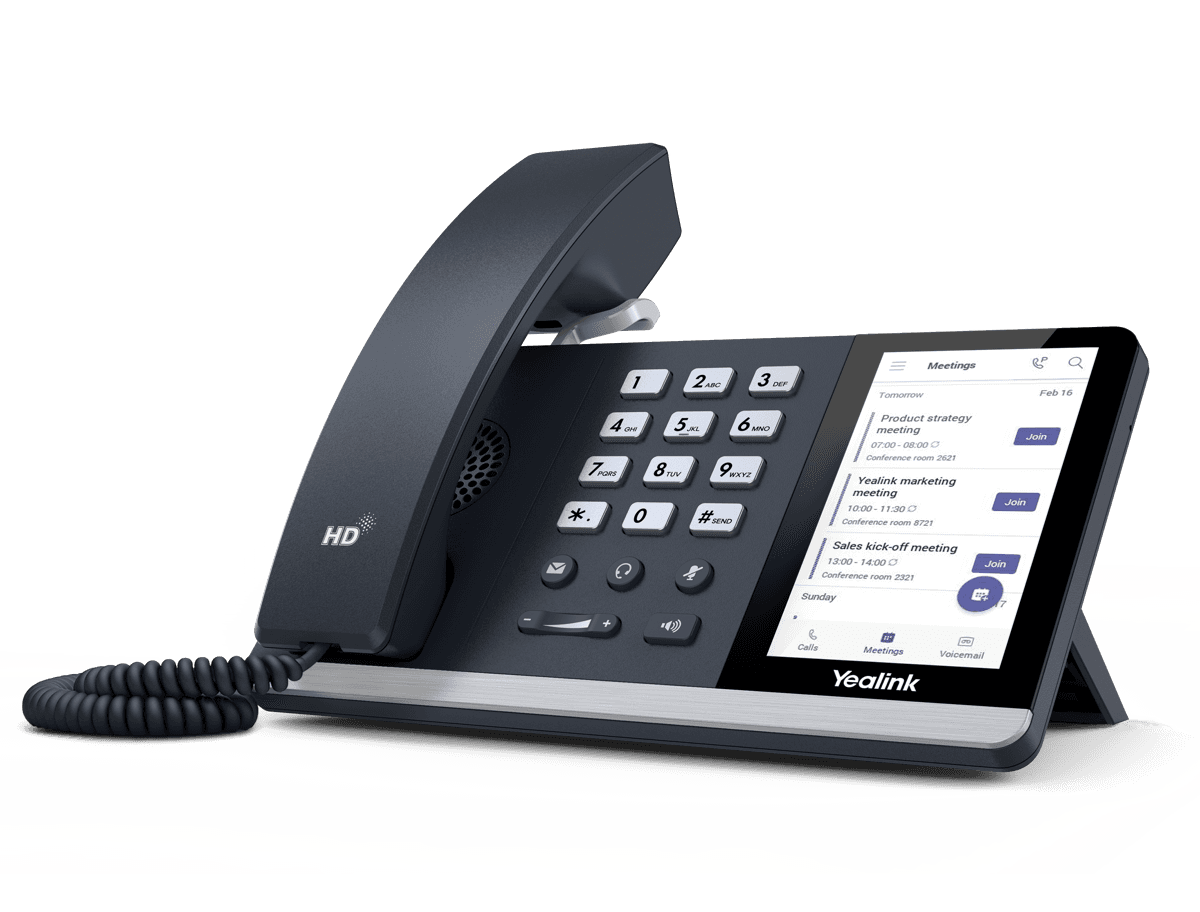
Yealink's user guide for the Yealink T55A Teams Audio Phone, covering everyday calling, contacts, voicemail and phone settings (75 pages). This is version 15.1, last updated by Yealink on October 21, 2025, and you can read it right here or download it.
The T55A Teams Audio Phone has been discontinued by Yealink, but it's still widely used, and this document is still the reference for setting it up. The Tech Team™ supports end-of-life Yealink phones and can help you plan a replacement when you're ready.
T55A Teams Audio Phone is end of life. Support options, dates and replacementsWhat’s inside
- About This Guide
- Related Documentations
- Summary of Changes
- Change for Guide Version 15.1
- Getting Started
- Hardware of T55A
- Hardware of MP54
- Power LED Indicator
- Accessing Screens on Yealink Teams Phones
- Home Screen
- Accessing the Calls Screen
- Accessing the Calendar Screen
- Accessing the Voicemail Screen
- Accessing the People Screen
- Entering Data and Editing Fields
- Using the On-screen Keyboard
- Using the On-screen Dial Pad
- Using the Phone Keypad
- Signing into Microsoft Teams and Locking Your Phone
- Signing into Your Device
- Signing into Microsoft Teams on Your Device
- Signing into Microsoft Teams via Web Sign-in
- Signing out of Your Device
- Phone Lock
- Creating a Lock PIN
- Enabling Phone Lock
- Setting the Idle Timeout for Phone Lock
- Unlocking Your Phone
- Changing Your Lock PIN
- Disabling Phone Lock
- Using a Teams Phone as a Common Area Phone
- Signing into a CAP/Meeting Account
- Signing out of a Common Area Phone
- Signing into a Teams Phone as a Guest User
- Signing in as a Guest User
- Signing out of the Guest User
- Changing Your Presence Status
- Contacts
- Managing Contact Groups
- View All Contact Groups
Phones covered
Yealink phones this user guide covers
FAQ
Questions about this document
Quick answers, and The Tech Team™ is a call away if you need more.
Need help with your T55A Teams Audio Phone?
The Tech Team™ can provision, update and troubleshoot your Yealink phones, and move your office onto smplVoice cloud voice.
Yealink and Yealink product names are trademarks of Yealink Network Technology Co., Ltd. Product information, images and documents are published by Yealink and provided here for reference by smplVoice. Firmware and documents are Yealink’s original, unmodified files.